
Postworthy
Introducing the Postworthy Share Shortcut for iOS
Share any article or podcast link, add a thought, and Postworthy turns it into a post draft by morning.
- Feature release
The best post ideas arrive when you're nowhere near a laptop.
Mid-podcast at the gym. An article you opened over lunch that's still in your head an hour later. A link a friend dropped in the group chat that said exactly what you'd been thinking.
The Capture Shortcut is for those moments. Hit Share on any article or podcast link from your iPhone, add a quick thought, and send it to Postworthy. We'll turn it into a post draft, ready in your next morning's email.
The difference from just saving a URL is the thought you send with it.
When the Capture Shortcut fires, we grab the URL along with your note. Then we pull the full text of the article — or transcribe the podcast — and find the passage your note is reacting to. The post gets built around that moment, not around a generic summary of the source.
The difference shows up in the posts themselves. "I heard a podcast and they talked about X" gives a reader nothing if they didn't listen. A post that quotes the specific thirty seconds you reacted to, followed by what you actually thought, is a post someone can engage with. Context for the people who weren't there. Your take for the people who were.
Set it up in three steps
Three things to do, about two minutes total.
1. Grab your API key
Sign in to Postworthy on your laptop or phone, open Settings, and generate an API key. Copy it somewhere safe. You'll only see the full key once.
2. Install the Shortcut
From your iPhone, tap Install the Shortcut and add it to your Shortcuts library. When it asks for your API key, paste the one you just copied. The shortcut is now live on your phone.
3. Share a link to test it
Open any article, tap Share, scroll through the list, and find Share to Postworthy. Tap it, type a quick thought, and submit. You'll get a confirmation on your phone. Check your email the next morning — the draft will be waiting.
Get Worth Posting in your inbox.
Essays on writing, attention, and the craft of posting like it matters. No fluff. Unsubscribe anytime.
Pin it to the top of your share sheet
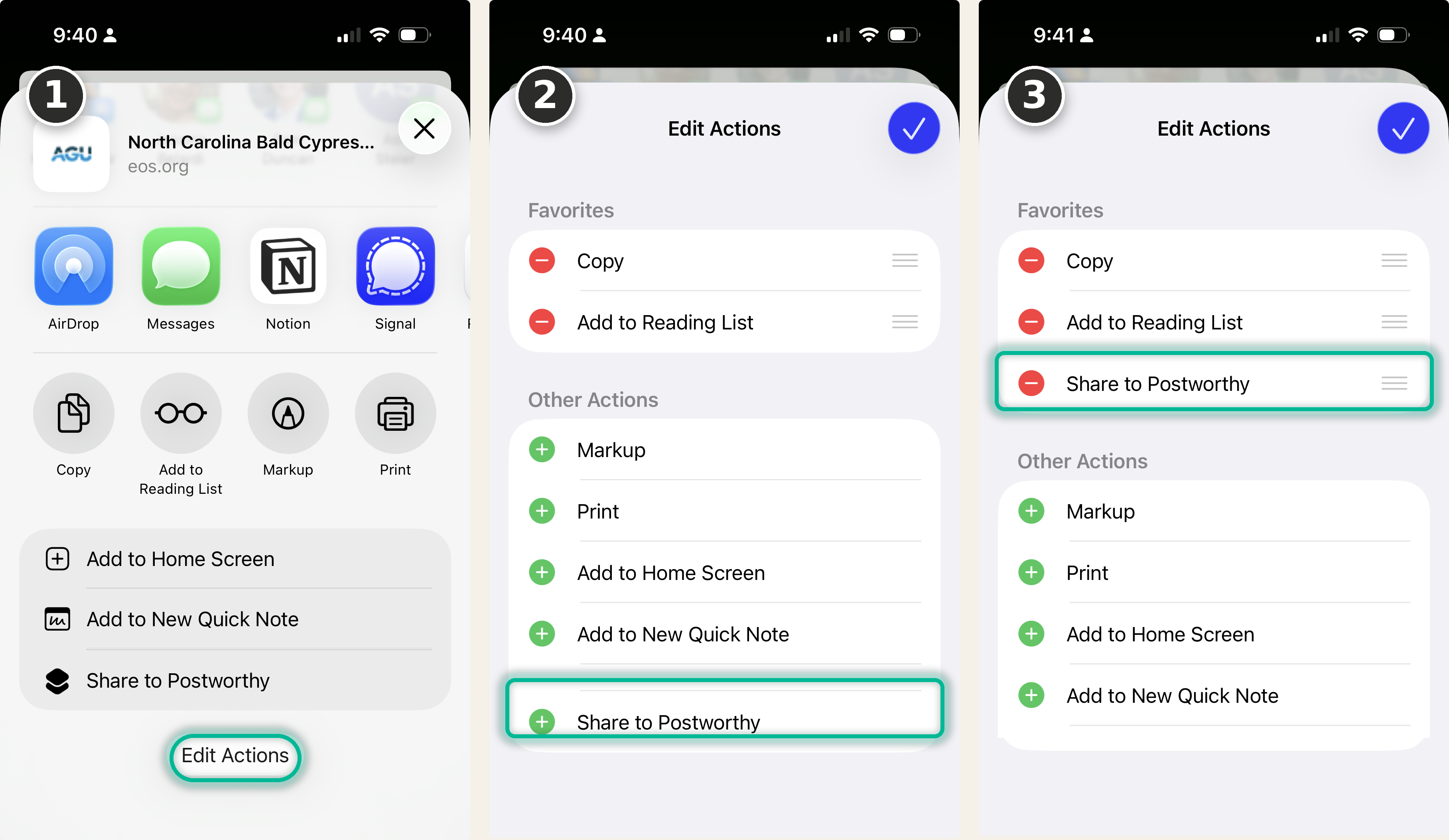
By default, Share to Postworthy sits near the bottom of the share sheet, below the fold. It works fine from down there, but if you're going to use it often, the extra scroll gets old fast. A minute of setup makes it one tap away from anywhere.
- Open any article and tap Share.
- Scroll to the bottom of the actions list and tap Edit Actions.
- Find Share to Postworthy under Other Actions and tap the green + to the left of it.
Tap the green + next to Share to Postworthy to pin it.
That moves it into your Favorites section, which sits at the top of every share sheet on your phone. To put Postworthy at the top of Favorites, drag the handles on the right side of each row.
Now when something sparks a thought mid-scroll, the path from "that's interesting" to "captured" is two taps.
URLs today, the rest is coming
For now, the Capture Shortcut handles URLs, which covers articles, podcasts, and most news content. If you can share a link to it, we can build a post around it.
Screenshots and files are coming next; raw text captures after that.
Install the Capture Shortcut and wire it in the next time an idea hits.
Questions or hit a snag? Write us at support@postworthy.ink.
Get Worth Posting in your inbox.
Essays on writing, attention, and the craft of posting like it matters. No fluff. Unsubscribe anytime.